Enable VRR and 120Hz: Console & PC TV Setup
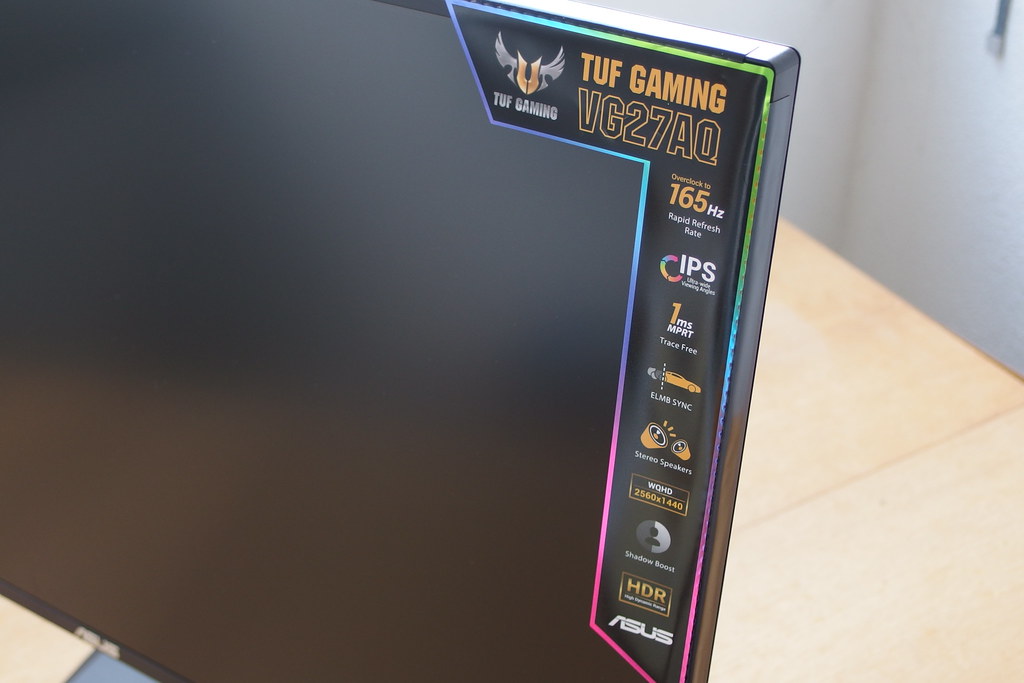
VRR eliminates tearing and stutter by syncing display refresh to frame rate. Many 2026 TVs support 4K120, ALLM, and VRR over HDMI 2.1.
TV Settings
- Enable enhanced/4K120 mode on the HDMI input.
- Turn on VRR/FreeSync/Adaptive Sync if available.
- Use a certified Ultra High Speed HDMI cable.
Console/PC Settings
- Xbox/PlayStation: enable 120Hz output and VRR in display settings.
- PC: set 120/144Hz in OS and GPU control panel; enable G‑SYNC Compatible or FreeSync.
- Use HDR only if performance allows; disable for competitive play.
How It Feels In‑Game
Once VRR and 120Hz are working properly, the difference is hard to unsee. Camera pans feel glued to your inputs instead of trailing behind, and small aim corrections stop “overshooting” because the display updates more frequently. Even when frame rates dip, VRR keeps motion smooth instead of turning every drop into a visible hitch or tear.
For story‑driven games, the benefit is simple: everything feels more fluid and responsive, especially during fast action or quick camera cuts. Competitive players get the added bonus of lower input latency and clearer motion, which can make tracking enemies or reading animations easier. It’s one of those upgrades that doesn’t show up in screenshots but is obvious the moment you go back to a 60Hz, non‑VRR setup.
To really appreciate the change, spend a week with VRR and 120Hz enabled and then deliberately switch back to a 60Hz mode on the same game. Pay attention to how aiming feels when tracking fast targets, how readable distant objects are during motion, and whether your eyes feel more tired after long sessions. Most players find that even if they cannot describe the technical difference, they instinctively prefer the smoother, more consistent experience—and that makes it easier to justify choosing a TV or monitor that supports these features on your next upgrade.